How to export a Notion database to Excel
Notion has no Excel export. Its own route is a CSV inside a zip, which Excel will open — with relations as URLs, dates as text and every colour gone. Here is that free route, where it stops, and how to get a formatted .xlsx instead.
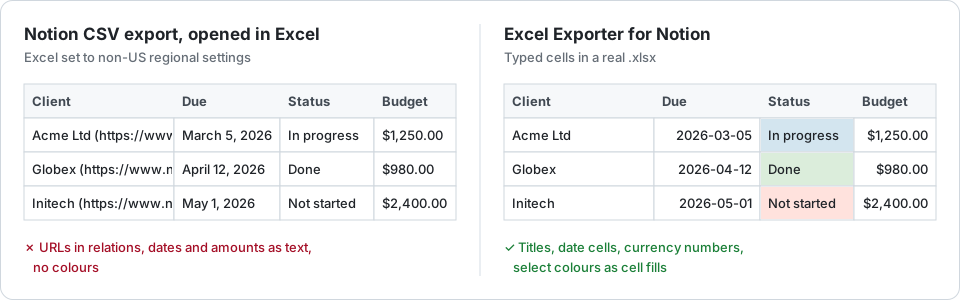
The free route: Notion’s CSV export
- Open the database as a full page and choose ••• → Export.
- Pick Markdown & CSV, and for a database with several views, the current view or the default one.
- Unzip the download. The table is the .csv file inside.
- In Excel, use Data → From Text/CSV with the UTF-8 encoding rather than double-clicking the file, so accented characters survive.
For a one-off export of a small table with no relations, this is enough. Use it.
What the CSV loses
A CSV has no types and no formatting, so everything Notion knows about a value stays behind:
- Relations arrive as “Title (https://www.notion.so/…)”, one per related page. Removing the URLs.
- Dates arrive as text in the property’s display format, which Excel may not read as a date. Getting real date cells.
- Formulas and rollups arrive as the text Notion displays. Keeping their values typed.
- Views: one view per export, one file each. Exporting the view you need.
- Select colours, bold and italic, and number formats such as currencies and percentages.
- The body of each page, which comes out as separate Markdown files.
The formatted route
Excel Exporter for Notion reads the database through Notion’s API, over a read-only connection you grant on Notion’s own consent screen, and writes a real .xlsx: relations as titles, dates as date cells, numbers with their Notion format, select and status colours as cell fills, and bold, italic and coloured text kept. Pick a view and its filter, sorts and columns come with it. Past Notion’s 10,000-row query limit the export keeps reading, as a background job with a progress bar.
It is free for up to 100 rows per sheet, with a watermark row. Premium raises that to 50,000 rows and adds a sheet per view or related database, saved presets and page content as a column.
Export a Notion database to Excel with Excel Exporter for Notion
- Click Connect Notion and, on Notion’s consent screen, tick the pages and databases the connection may read.
- Pick a database, or one of its views, from the list.
- Choose the columns and how relations, dates and rich text are written. Twenty real rows are previewed before you commit.
- Start the export, then download the .xlsx when the background job finishes.
Try it on your own database
Free for up to 100 rows. No credit card. You choose which pages and databases to share on Notion’s consent screen.
Questions
Can Notion export to Excel directly?
No. Notion exports a database as Markdown & CSV, and Excel opens the CSV as plain text, so dates, numbers and relations need cleaning up by hand. Notion’s AI agent can build a spreadsheet from a prompt, but only on Business and Enterprise plans, and it spends AI credits.
Is Excel Exporter for Notion free?
For up to 100 rows per sheet, yes, with every formatting feature and a watermark row. Premium is $9 per month or $99 per year, per Notion account and per connected workspace.
Does it change anything in my Notion workspace?
No. The connection is read-only: it reads the pages and databases you share with it on Notion’s consent screen, and it cannot create, edit or delete anything.